
 Login
Login Register
- Game Servers
- Minecraft
- Garrys Mod
- Rust
- Conan Exiles
- Arma 3
- ARK
- CS:GO
- TF2
- Unturned
- Blackwake
- Mordhau
- Factorio
- Space Engineers
- Valheim
- Virtual Dedicated
- General
- Game Servers
Whitelisting your server
Whitelisting your server only takes a few minutes of your time and will allow you and your friends to play without anyone interrupting you. The steps below will talk you through the entire process.
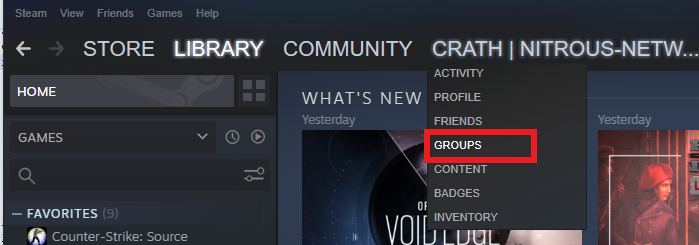
The first thing you will want to do is open Steam
Next, select your profile and click the Groups section in the dropdown list
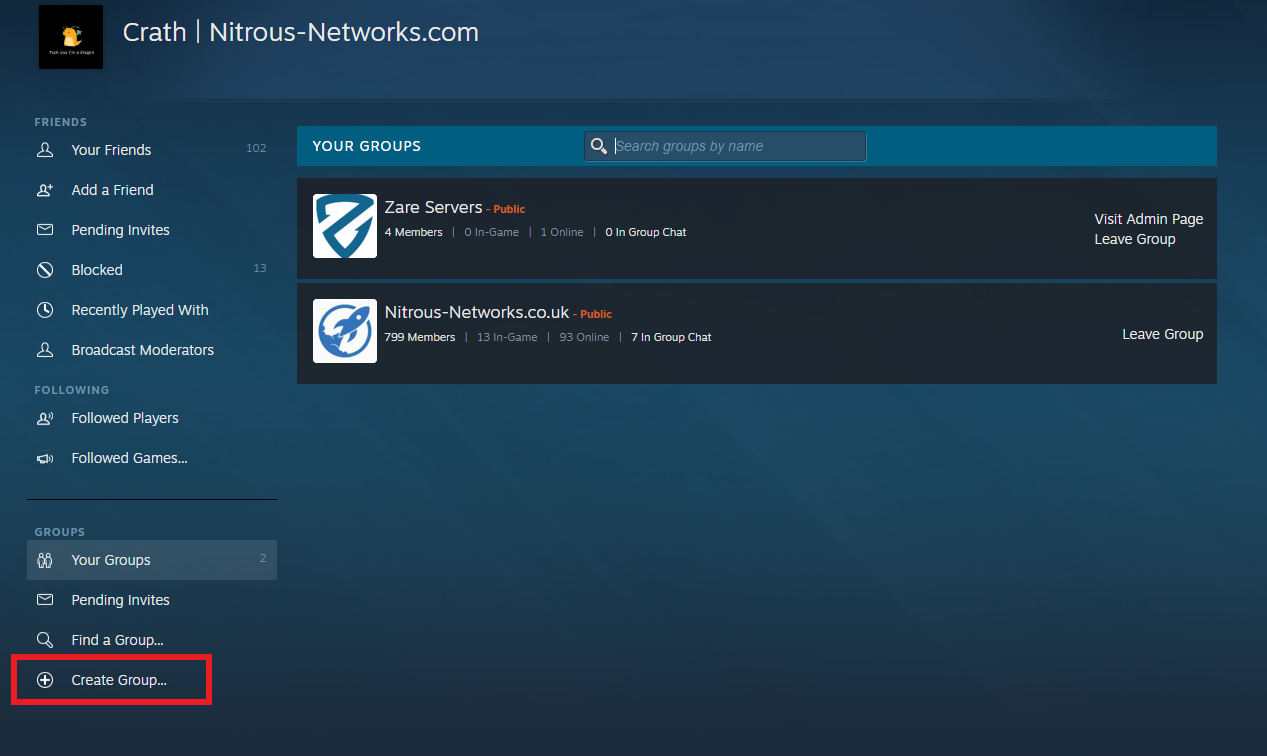
On this page, navigate to the bottom and click Create Group
Now you will want to setup your group name, abbreviation and group link. These are all down to your personal preference and can be whatever you like. Once done, click Create
Now click Create again if you are happy with the group information.
You will then be brought to your group's community page, here you can make additional changes to your group and customize it to your liking.
At the top of your page you will find group ID listed, take note of this as it's important for future steps.
Make sure you DO NOT tick the Public Group box if you wish for the server to be private. Ticking this will allow anyone to join the group and then join your server.

Enabling the whitelist on your server
With the above steps completed, we now want to apply these changes to the server. For this, you will want to navigate to your server control panel and make sure the server has been stopped.
On your control panel, select the button Configuration Files
On the SpaceEngineers-Dedicated.cfg select Text Editor, this will allow you to make changes to the file.
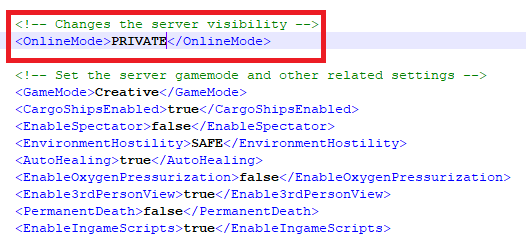
At the top of the file you will see a tag called OnlineMode, within here you will see that it says PUBLIC.
Change this to PRIVATE
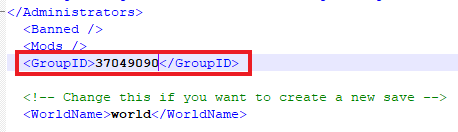
Now navigate to the bottom of the file and find the tag GroupID
By default the GroupID will be listed as 0, change this to the GroupID we saved in the first section.
Now save the file and start the server, you should be ready to play! Make sure to invite your friends to the steam group, otherwise they will be unable to connect to the server.
Alternatively, press Ctrl + F to search for GroupID
If you have any further questions, feel free to submit a support ticket and one of our staff members will provide assistance - https://billing.nitrous-networks.com/submitticket.php